GPU Reservations
GPU Reservations
Training Coordinators can secure guaranteed GPU resources for their courses by creating GPU reservations. This approach grants these courses priority access over standard requests for GPU compute hardware, thereby ensuring that training sessions and labs have the necessary infrastructure to run successfully.
The following steps outline how to create a GPU reservation for a course:
Navigate to the Desktops tab on the course page and select the blue button labelled "Reserve GPU", located beneath the Video conference button.
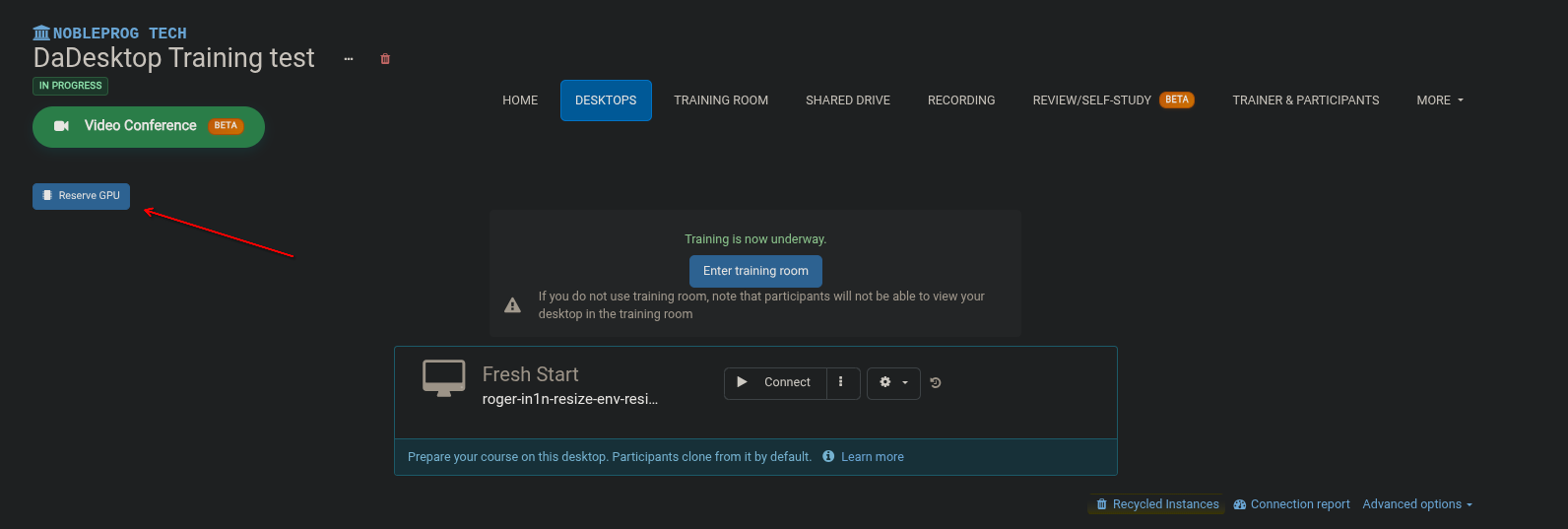
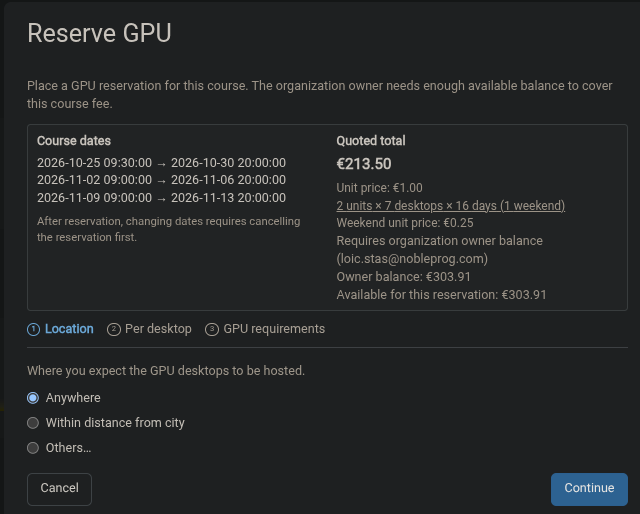
A prompt will then appear to collect the necessary details for your GPU request.
The first item is location, which defaults to "Anywhere".
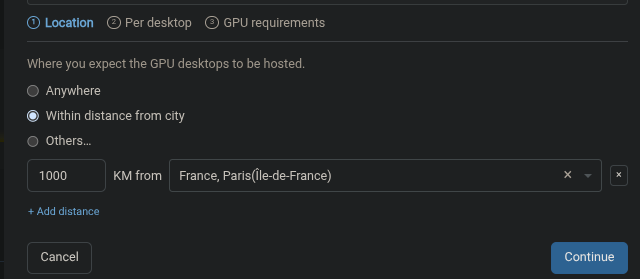
If you know the city closest to your participants, you can specify it manually by selecting "Within distance from city".
For broader location coverage, you can opt for "Others...".
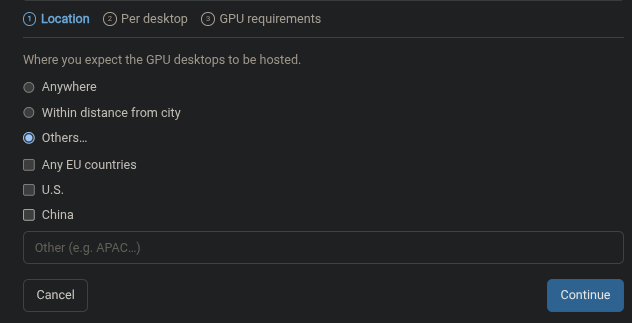
Once you are content with the selected location, click "Continue" to proceed to the "Per desktop" section, where you can define your machine requirements.
In this section, specify all required resources per machine to obtain an accurate estimate of the associated costs.
** Accuracy is crucial here, as it improves cost estimation and assists course managers in sourcing resources if capacity is limited in a specific region.
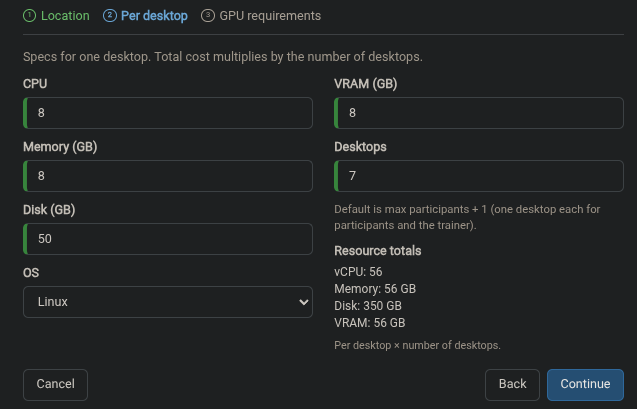
If you are satisfied with the entered details, click Continue to move to the GPU requirements section.
It is advisable to consult with the trainer to determine the exact needs for the course. Trainers typically have a clear understanding of the required GPU Vendor and Model to deliver their content. If you or the trainer are uncertain, please select "ANY".
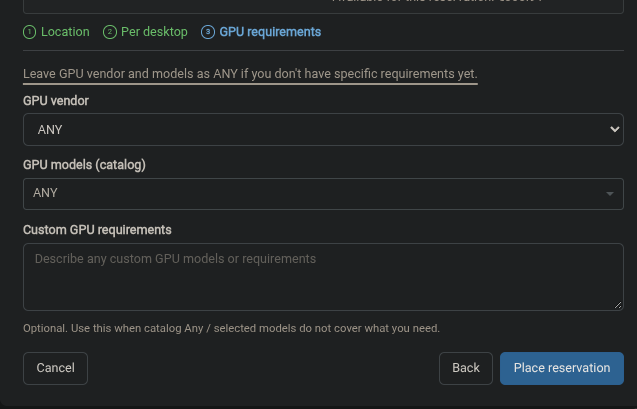
Currently, we support two vendors: AMD & Nvidia.
Regarding models, we list our current catalogue. If the specific needs of the trainer are unclear, please select "ANY" once again.
Once you have reviewed and approved the reservation details, click "Place reservation". This will allocate the necessary funds, activate the reservation, and mark it as active on the course page, as shown below:

If new information arises regarding the required GPUs or changes need to be made to your reservation, please contact DD support for assistance with editing the GPU reservation request.