Recording Management (Beta)
Head to the Recordings tab within a course and you'll find tools to manage your videos and recordings for that course page. This feature's currently in Beta, but you can already create Modules, edit and trim videos, and a fair bit more.
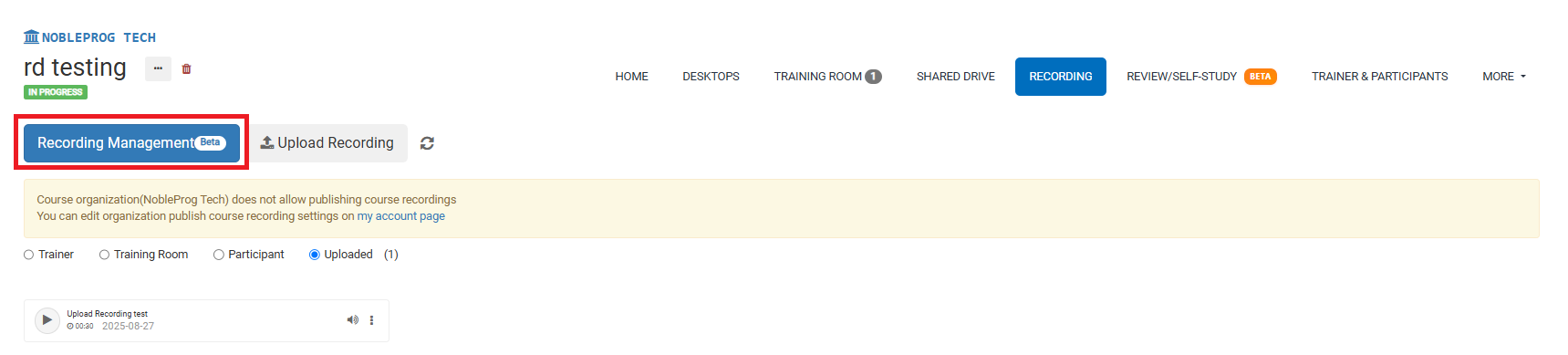
Recording Management Button
Inside the recordings tab, have a squiz on the left-hand side for a large blue button labelled "Recording Management". As you capture recordings during your course, they'll start piling up here on this page. They might be tagged as Trainer, Training Room, or Participant.
If you're sure you've already made some recordings but they haven't popped up yet, give the refresh button next to the "Recording Management" button a click.
Once you click the button, a new pop-up screen will appear.
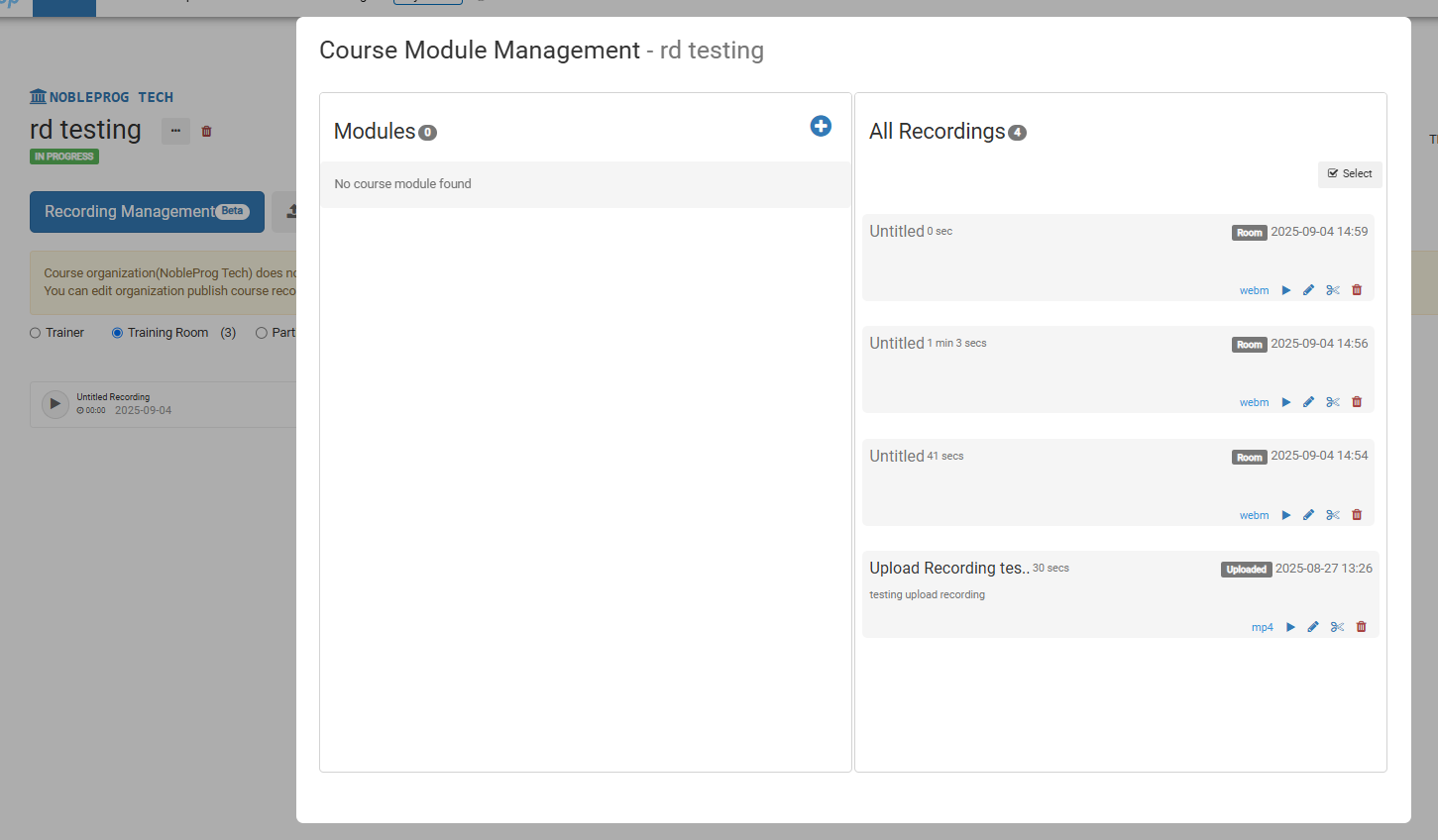
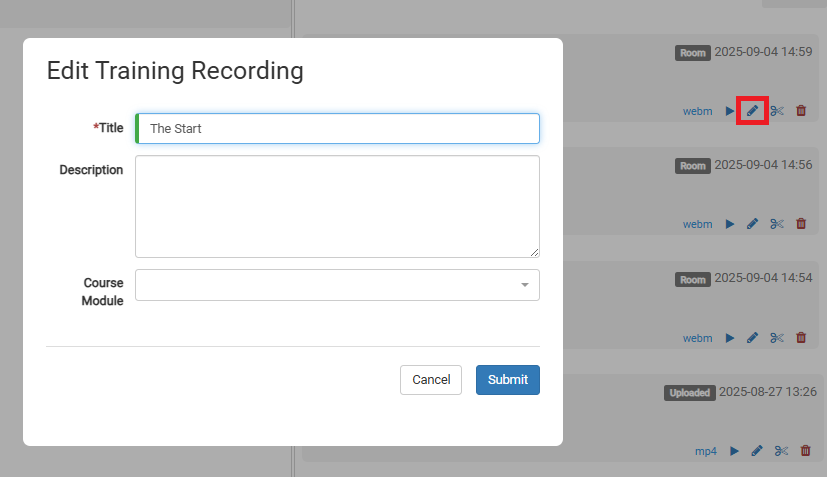
From here, click the pencil icon on any video to edit it.
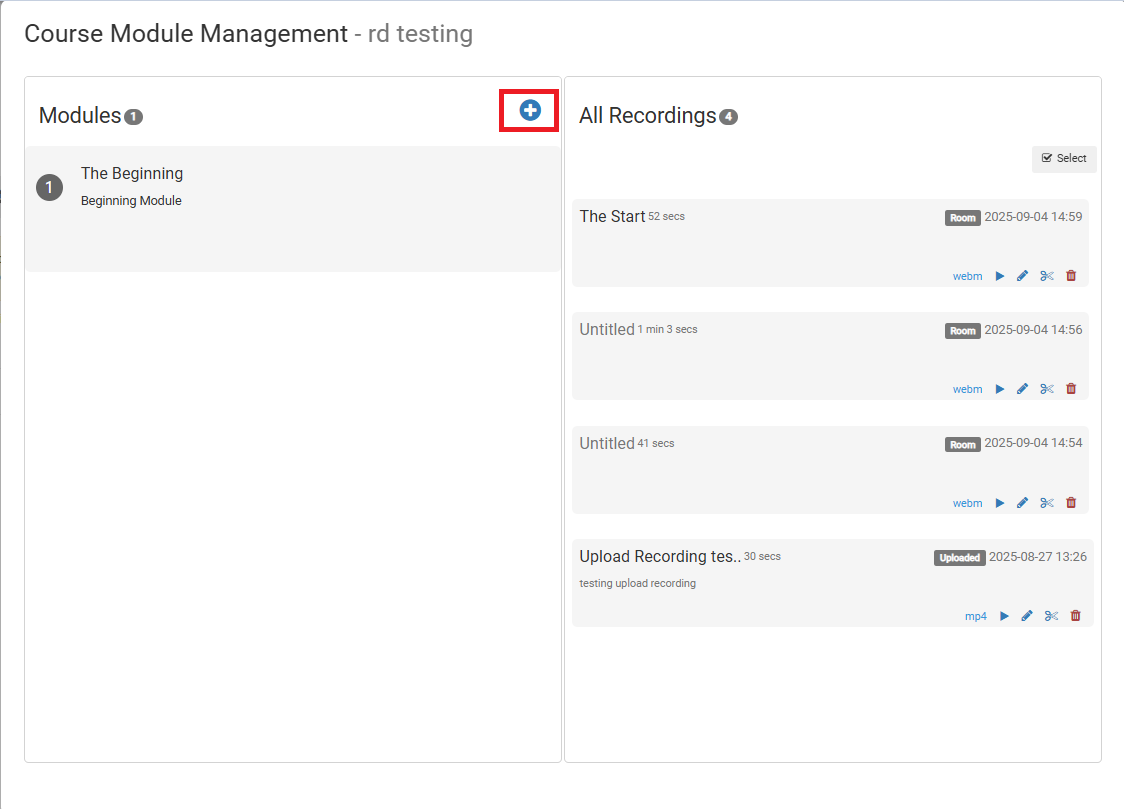
To create Modules, click the (+) icon under the Modules box.
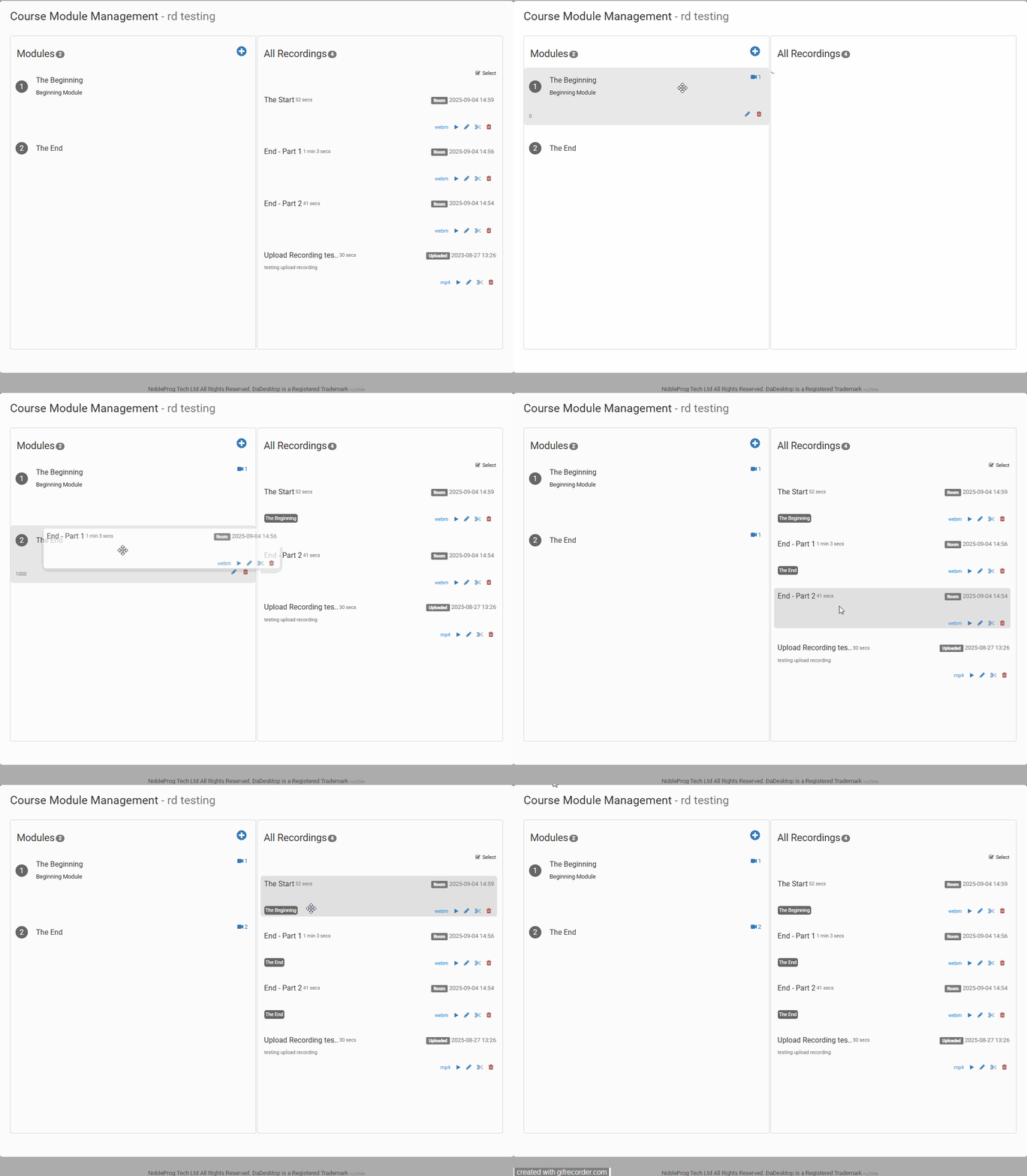
After you've set up your modules, you can shift videos into each one. You can drag and drop them.
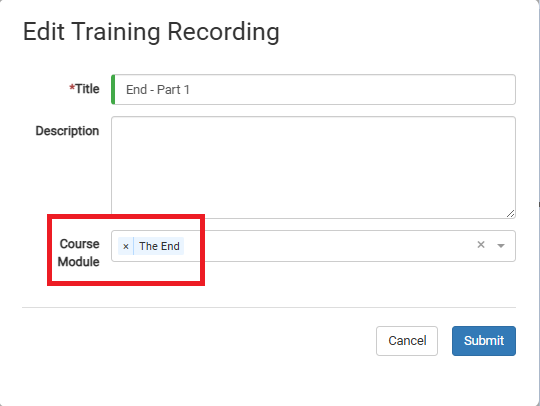
Or you can manually assign a module when editing the video.
Video Editing
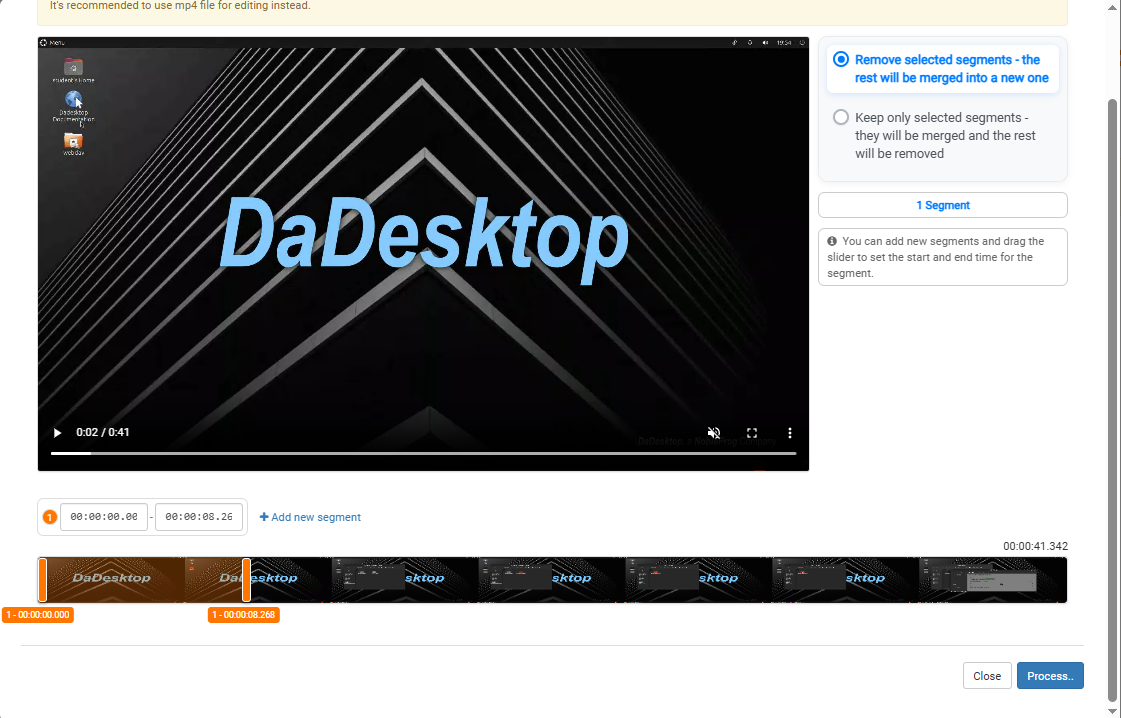
You can carry out some basic video edits. If there are bits in your recording where you're just idling or hunting for a file, and you'd rather not show that in your demo, click the "scissor" icon on the video. That way you can do a bit of cutting to tidy up your video.

This brings up an Edit/Cut Recording window where you can scrub through and chop up your video. Once you're happy with your changes, process the video to render out your edits.