Advantages
Cloud desktops offer substantial value to organisations aiming to provide live, instructor-led training. These benefits are particularly evident when delivering IT courses to participants located in various geographical areas.
A growing number of businesses have selected DaDesktop for local, live, instructor-led training, appreciating the simplicity of pre-installing and configuring complex software applications. Once set up, these environments can be rapidly and effortlessly replicated across dozens or even hundreds of other cloud desktops.
Below are key reasons why instructors, participants, and organisations choose DaDesktop to meet their training requirements, along with the advantages they have experienced.
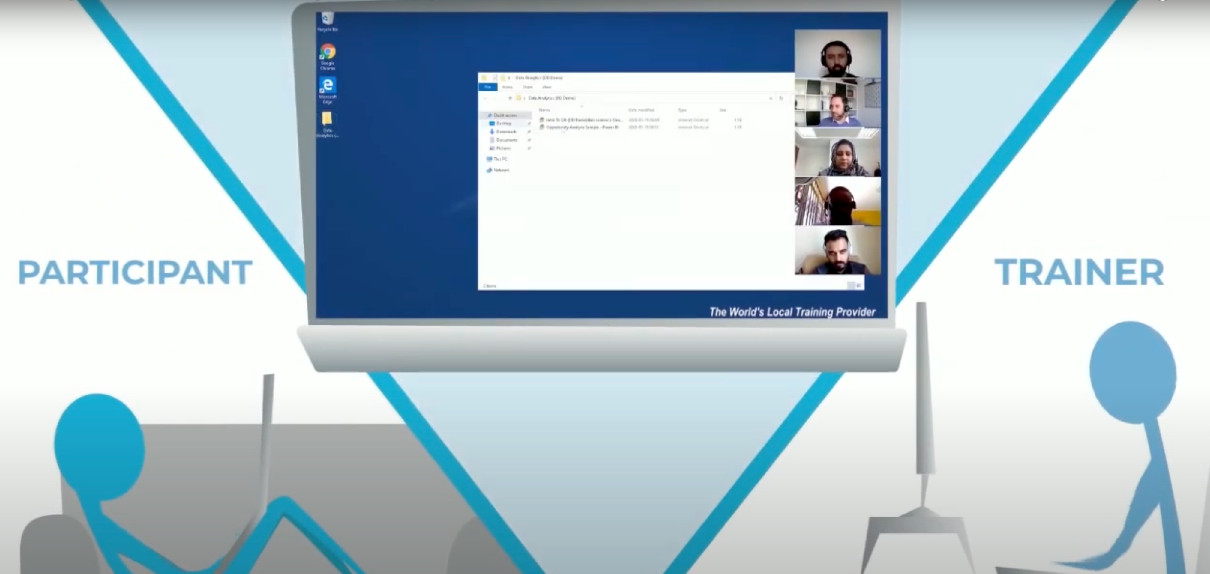
Organisations (businesses, educational institutions, government bodies)
- Cost-efficient
- Utilising DaDesktop is significantly more affordable compared to leasing cloud infrastructure from AWS, Azure, or Google Cloud.
- Because DaDesktop focuses on short-term cloud desktop usage rather than long-term hosting, it allows for a much simpler and lower-cost pricing structure.
- Scalable
- Businesses leverage DaDesktop to deliver IT training to large groups, replicating pre-configured cloud desktops for over 50 students simultaneously without any disruption.
- DaDesktop servers can accommodate thousands of virtual machine images at any given time, enabling the scaling of course participants well beyond the capacity of a standard classroom.
- Rapid Deployment
- With DaDesktop, cloud desktops are quickly provisioned at the start of a training session and efficiently decommissioned once it concludes.
- DaDesktop cloud desktops can be replicated over 100 times faster than public-cloud instances from AWS or traditional classroom workstations.
- Convenient
- The intuitive interface facilitates on-the-spot setup and adjustments to the learning environment, even after the class has commenced.
- Extensible
- DaDesktop offers a streamlined process for requesting new features.
- DaDesktop supports a public API and extensions, enabling custom integrations with third-party systems such as LDAP, OpenID-Connect, and LMS.
- Secure
- No user data is retained on DaDesktop beyond the duration of a training session.
- Each cloud desktop is engineered as a temporary, self-contained computing environment.
- Accessible
- There is no need to seek IT department approval to allow software to bypass corporate firewalls.
- The complete Windows or Linux OS desktop environment is accessible directly within the browser, eliminating the need for plugin installations.
- Deployment Flexibility (Public, Private, and On-premise)
- DaDesktop can be accessed via public or private servers, offering users varying degrees of exclusivity.
-
DaDesktop also supports on-premise installation within the customer’s own data centre.
Try DaDesktop today!
Instructors
- Convenient
- Instructors can provision as many cloud desktops as required, assigning one to each participant for the duration of the training session.
- Instructors can pre-install and configure a single cloud desktop with necessary software and OS settings, then simply replicate that desktop for as many participants as needed. This eliminates precious time spent troubleshooting setup issues during the class.
- Instructors can conduct training sessions using only a browser on their laptop, from the comfort of their home or office.
- Rapid Deployment
- Instructors can provision multiple cloud desktops for multiple participants simultaneously, all within seconds.
- Interactive
- Instructors can not only view participants’ desktops but also take control of them at any time, replicating the experience of a live classroom setting.
- Recordable
- Trainers can record entire training sessions to share with participants afterwards.
-
Recorded sessions can be reviewed by the instructor as a means of self-feedback to improve future course delivery.
Try DaDesktop today!
Participants
- Convenient
- Participants can access DaDesktop from their laptop or PC browser using only the URL provided by the instructor.
- No software installation is required. Participants simply log into DaDesktop and begin using the Windows or Linux OS desktop environment directly within their browser.
- Upon joining a training session, participants have immediate access to all tools, materials, and exercises prepared by the instructor in advance.
- When participants switch their browser to "full-screen" mode, the cloud Windows or Linux environment expands to fill the entire screen. This eliminates the feeling of a nested environment, providing an experience akin to a full operating system running on their own device.
- Participants can complete training sessions from the comfort of their home or office.