Remote Replica
Remote Replica is built to duplicate, or clone, your Fresh Start Desktop onto another server, typically situated in a different location in New Zealand. After setup, any changes you make to your machine are quietly and automatically copied in the background to the replica—no further input required from you.
This feature is quite handy and can be put to use in a few different ways; two of them are outlined below.
Note: Remote Replica currently only works with Fresh Start machines, though you can also use it with DaDesktop for work (DD4W).
Scenario one: Create a Remote Replica (clone) of your Desktop on a server in a different data centre
As a bit of insurance, you might want to keep a Remote Replica of your Desktop on a server in a different data centre—just in case your main server becomes unavailable for any reason. If that happens, you can simply switch to your replica copy and carry on exactly where you left off.
Our Fresh Start machine lives in the UK Data Center initially, for instance bd3uk.
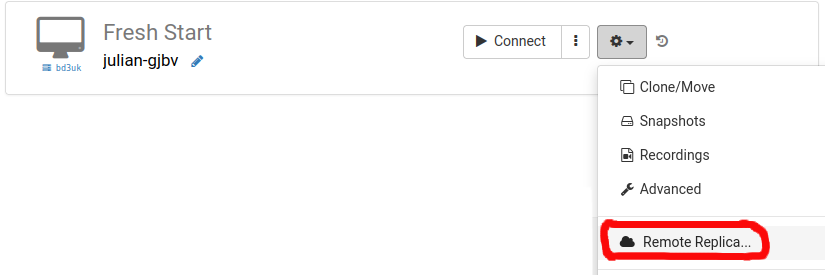
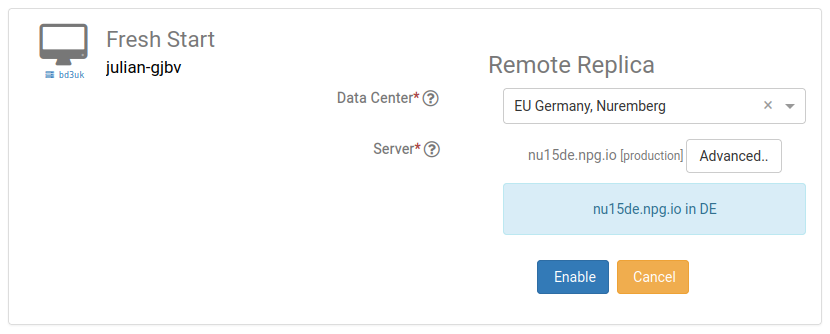
Pick the data centre you’d like to use for the Remote Replica—ideally one that’s different from where your current machine sits. You could opt for a different data centre, or even another country entirely.
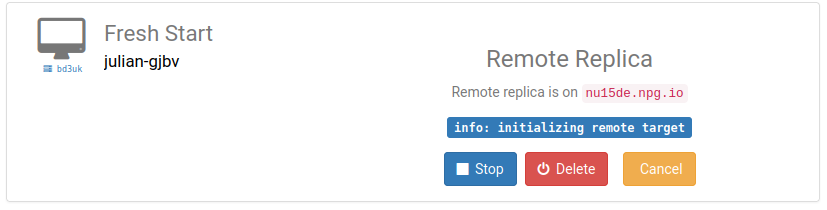
The Remote Replica desktop is now being built. How long it takes depends on how far away the replica is located and the size of your Desktop. In the meantime, you can keep working on your original machine if needed.
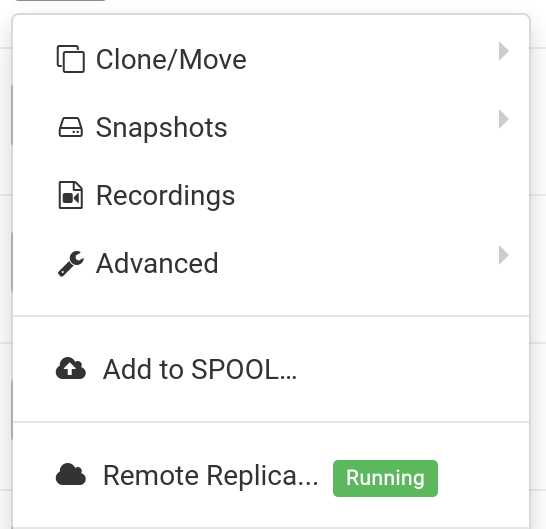
Restoring a Remote Replica
If for some reason you can’t access your FreshStart Desktop, you can choose to restore the Remote Replica you set up earlier.
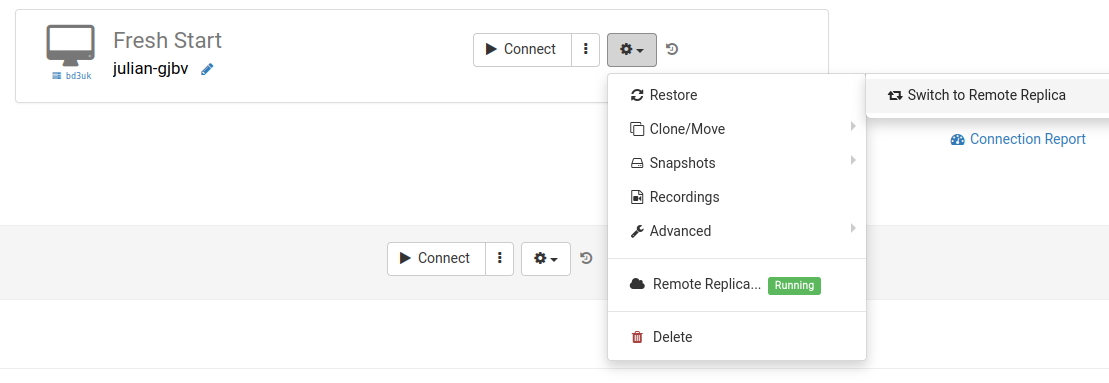
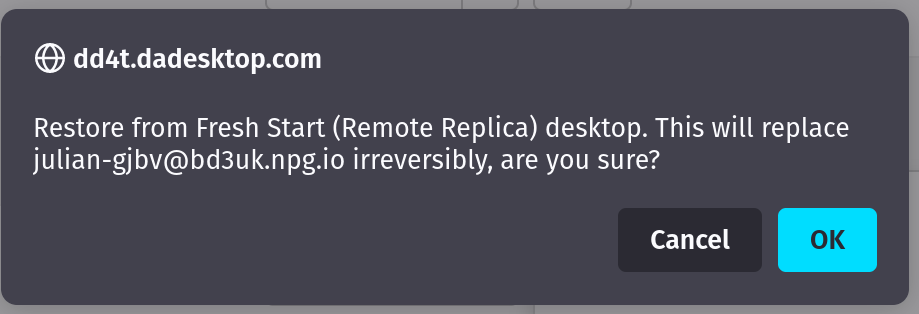
Once you switch to the Remote Replica, you cannot go back to the original Desktop. That’s fine though, because the replica is an exact clone.
Bear in mind however that after switching, the Remote Replica job stops running—if you want another replica, you’ll need to repeat the initial steps to set up a fresh one.

Second scenario: Use a Replica for FreshStart in a different geographical region to cut down connection latency
Remote Replica really shines when you need a copy of your Fresh Start machine that’s physically closer to you while you’re building course content. For example, a trainer based in Germany might be delivering a course in South Africa. This sort of thing is pretty common with DaDesktop, as the system makes running courses like that dead simple.
In that situation, you wouldn’t want to create your Fresh Start Desktop on a South African server because the connection latency would be too high. So instead, you set up a Remote Replica of your Desktop in Europe to keep latency low. The replica stays synchronised with every change you make.
Once you’ve finished working on the Fresh Start Desktop, restore the Remote Replica onto the Trainer machine located in South Africa for quick copying to both the Trainer machine and the Participants.