Create From Standalone Desktop
-
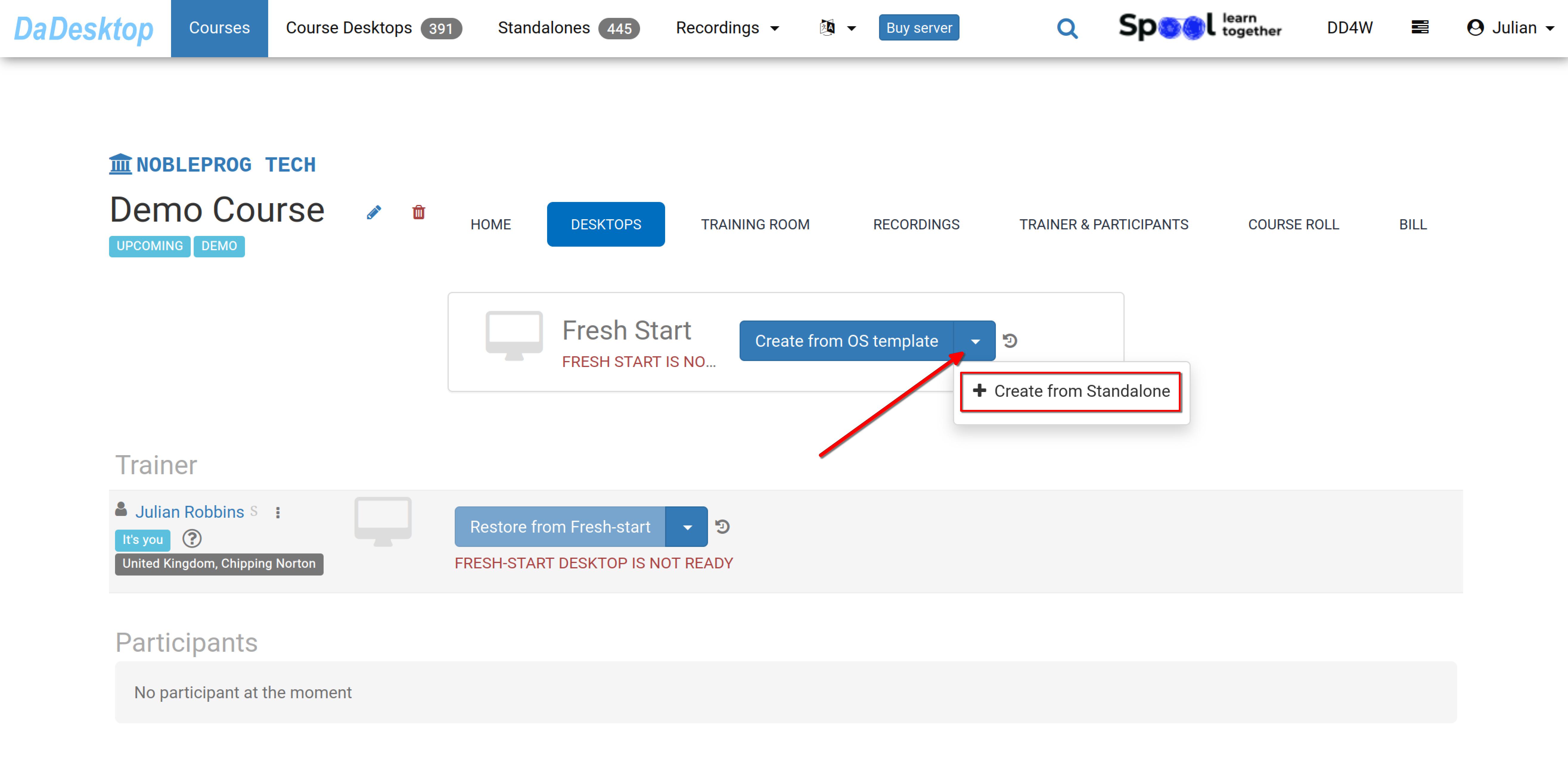
Head over to the course you've set up—a demo course is shown below as an example. Then select the Desktops tab, click the drop-down arrow, and pick "Create from Standalone" to make your Fresh Start.
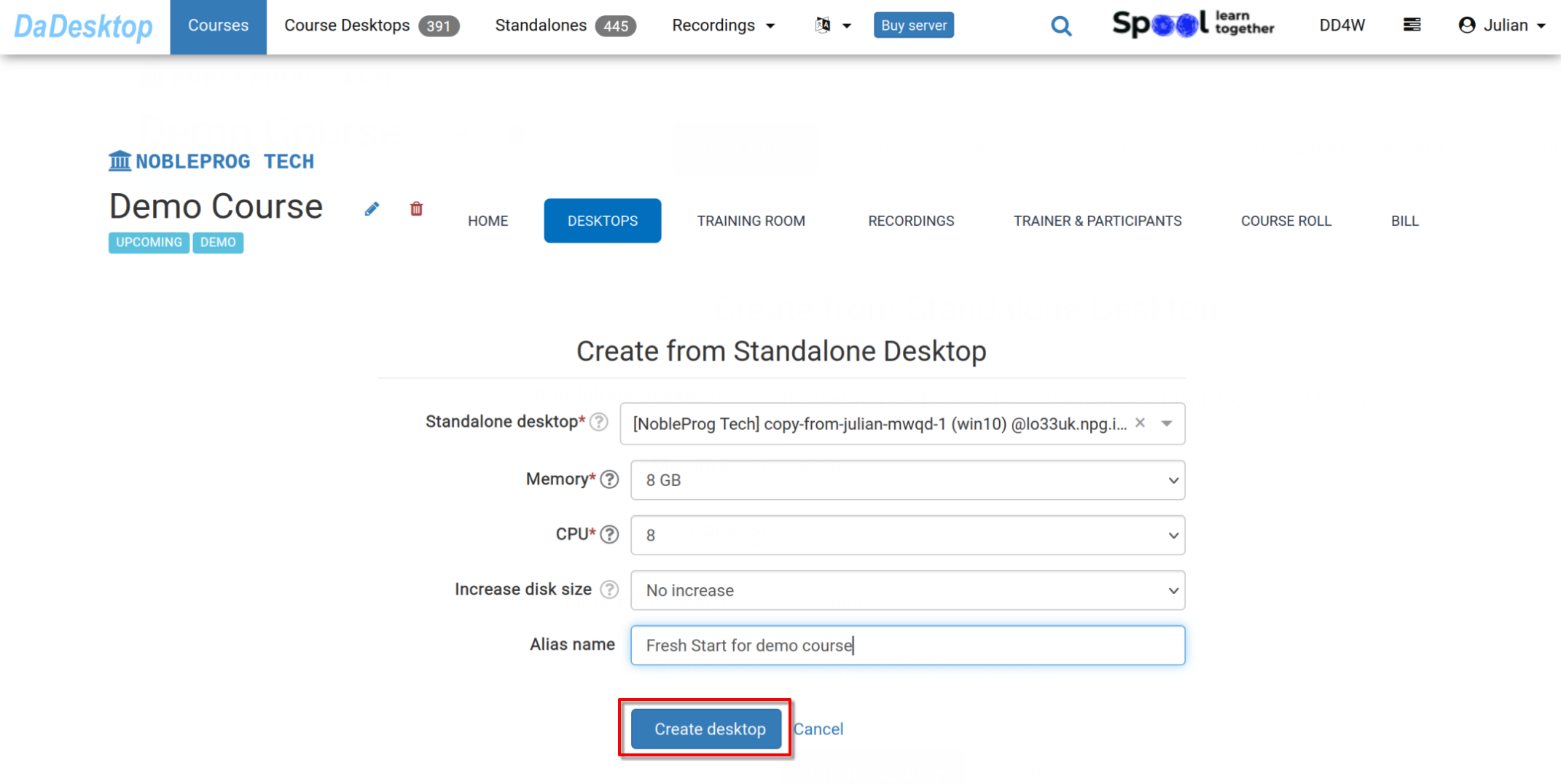
- Select the "Standalone desktop" you've previously worked on that holds the course environment (software, course materials, quizzes, etc.).
-
If needed, you can tweak the Memory, CPU, and bump up your disk size during this step. Click "Create desktop".
-
Your Fresh Start is now good to go. Both the trainer and participants can clone desktops from it.
A Fresh Start is a desktop within the course that lets you clone to all participants and the trainer in one hit. Anyone in the course can restore from the Fresh Start if they need to.
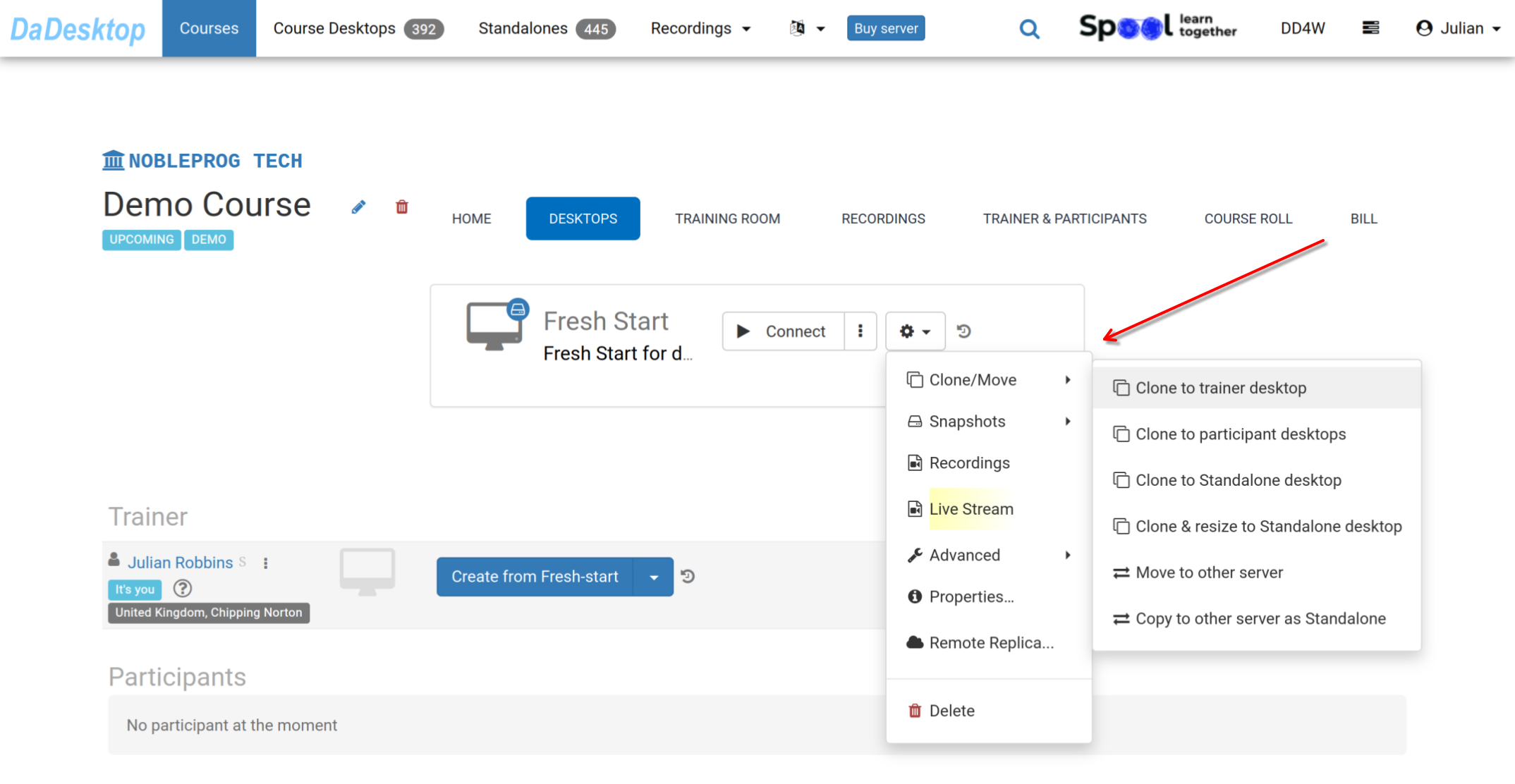
From the 'Cog' menu, you'll find plenty of other choices, like cloning your Fresh Start to a Trainer, Participant, or a Standalone machine, plus the option to clone and resize the machine into a Standalone. Other bits include moving the Fresh Start to a different server here in New Zealand, creating Snapshots, checking Recordings, or configuring a Remote Replica.Have a squiz at the documentation on these various features as needed.