Copying files from the host machine into a DaDesktop machine
A frequently requested capability is the option to copy files from a Trainer’s own laptop or desktop straight into a DaDesktop machine. These could be presentation decks, install ISOs for use in a nested virtualisation setup that lets you run multiple servers and desktops, or simply general files needed for a specific training application.
The team has introduced a straightforward file transfer feature in our latest Win 10 and most Linux templates. You can now simply drag and drop files from the host machine (your own laptop or desktop) into the DaDesktop environment.
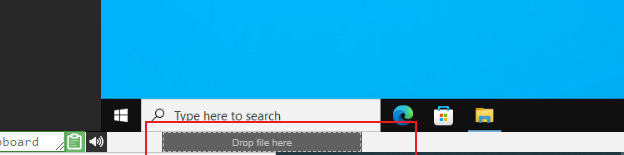
At the moment, file transfer is restricted to one file at a time. If you need to move across several files, you can bundle them into a zip archive and drag and drop that over as well. The transfer splits files into chunks to send large items efficiently, and it works best over a fast fibre internet connection. Any folder structure inside the archive, like a zip file, is preserved.
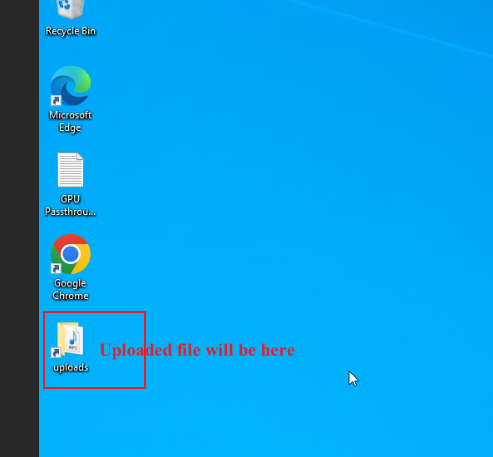
On the Linux templates, there isn’t currently a desktop shortcut to the Uploads folder, unlike the Windows setup shown above. Instead, you can locate the transferred files here:
/home/student/uploads-to-dadesktop
To sum it up:
OS Templates that include this feature now
- Debian 12 - v20240314 and later
- Ubuntu 22.04 - v20240314 and later
- Ubuntu 24.04 - v20240314 and later
- Windows 10 - v67 and later
OS Templates that haven’t got this feature enabled yet
- Debian 11
- Almalinux
- Kali-linux
- Any older template versions
Keep in mind more additions to this early release feature will be rolled out soon New Zealand.
If you have any thoughts on this feature, feel free to reach out via DaDesktop Technical support chat.