Create from OS Template
To create a desktop from an OS template:
- Head into the course and go to the Desktops menu
- Click on "Create From OS Template"
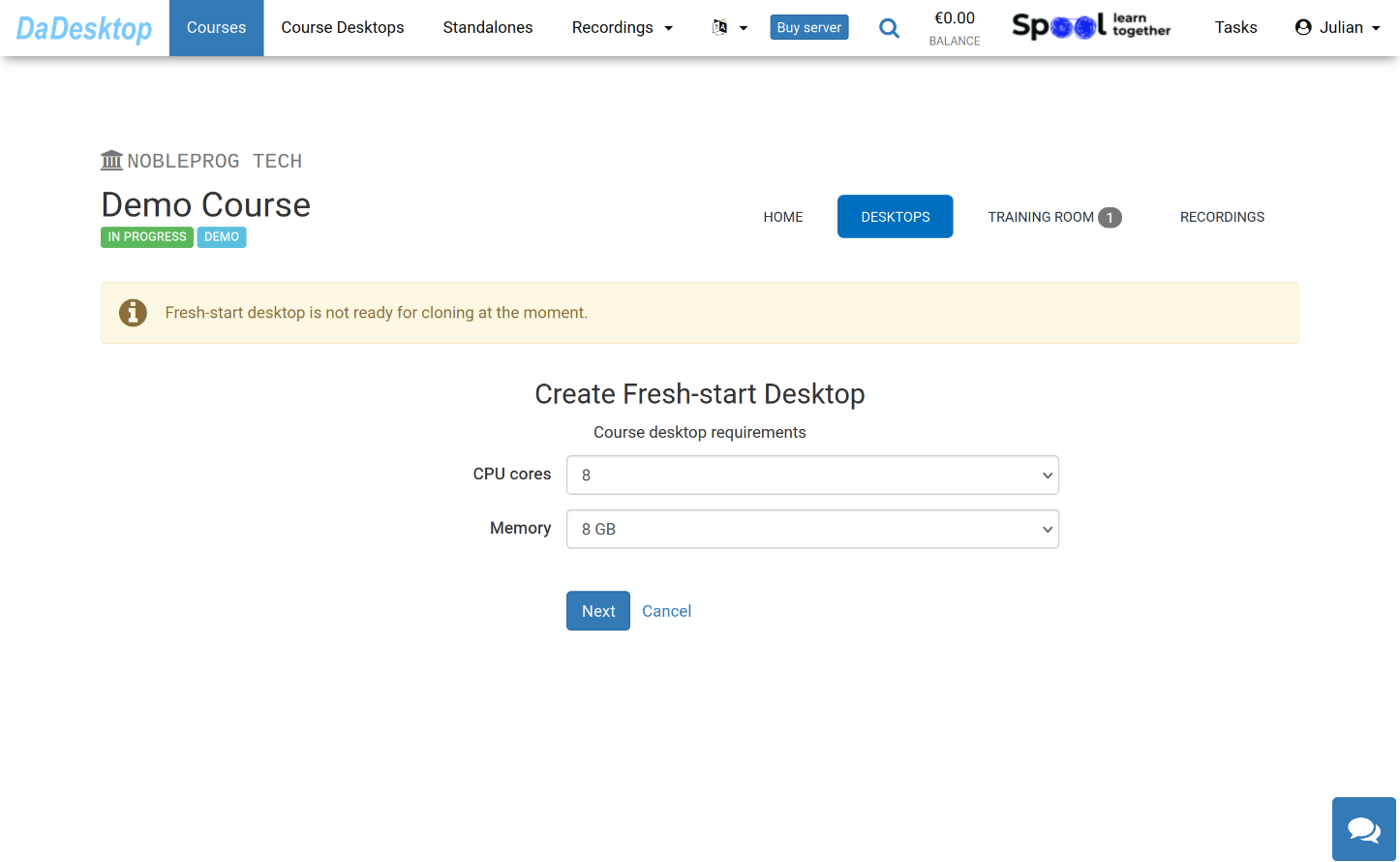
Here’s a look at the various options you’ll have when creating from an OS template.
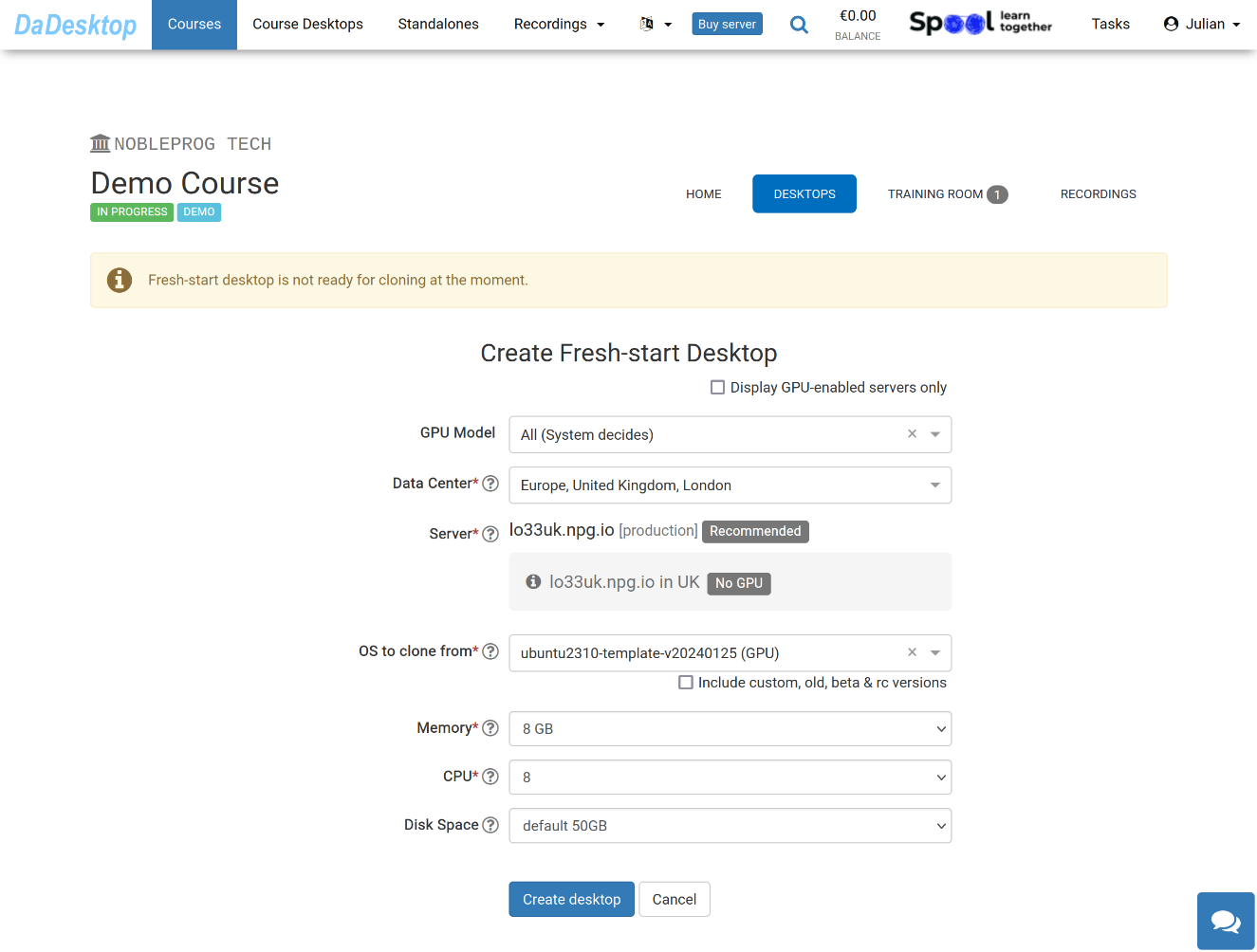
Below is an explanation of each field:
-
GPU Model
Select the GPU model and type if you need one. Ticking the 'Display GPU enabled servers' checkbox will show only servers with GPUs available. -
Datacentre / Server
Pick the datacentre region and server that's closest to you in New Zealand. -
OS to clone from
Operating system templates cover Windows and Linux distributions (like Ubuntu, Debian, Almalinux, and others). -
Include custom, old, beta & rc Versions
DaDesktop regularly updates templates. If you run into issues with the newest one, you can try an older version here. -
CPU
Choose the number of CPU cores you need. The default is 8 cores, which is generally fine for most everyday Linux and Windows requirements. -
Memory
Set the memory limit in GB for the desktop. Bear in mind that you're bound by the server’s resources. Different servers may have different memory caps. If you need to bump up these limits, get in touch with us via Support Chat. -
Disk Space
Choose how much disk space is allocated. The default is 50GB.